![Logo - NETRONIC Software - Gantt Charts for Visual Scheduling-a-Boyum-IT-Company-01.png]](https://help.netronic.com/hs-fs/hubfs/2017%20Relaunch/Logo/Logo%20-%20NETRONIC%20Software%20-%20Gantt%20Charts%20for%20Visual%20Scheduling-a-Boyum-IT-Company-01.png?height=50&name=Logo%20-%20NETRONIC%20Software%20-%20Gantt%20Charts%20for%20Visual%20Scheduling-a-Boyum-IT-Company-01.png)
You can decide which D365 BC information is to be shown as labels in the table for:
- jobs
- job tasks
- job planning lines
- resources
- resource groups
- resource summaries
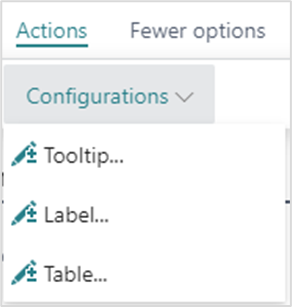
The settings are made in the corresponding dialog that can be found by clicking "Configurations" in the "Actions" menu of the "User Setup" dialog:
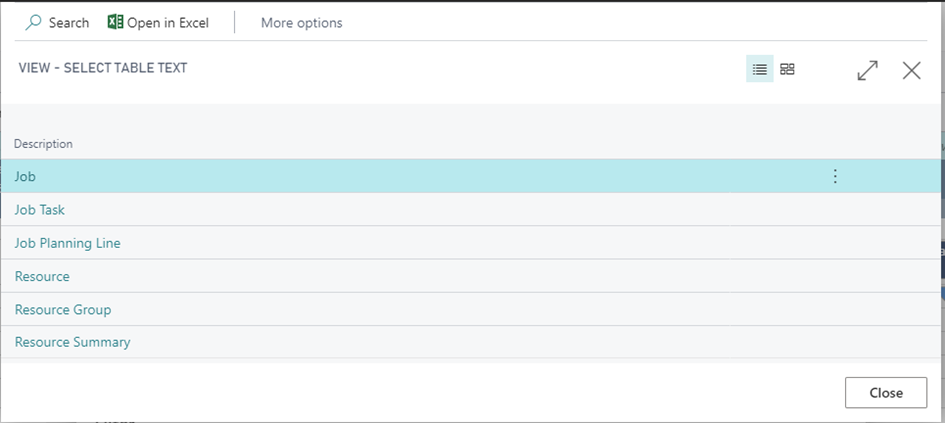
In the "View - select table text" dialog, select the item and/or view for which you want to customize the table label
The “Edit – Define Configuration” dialog pops up:
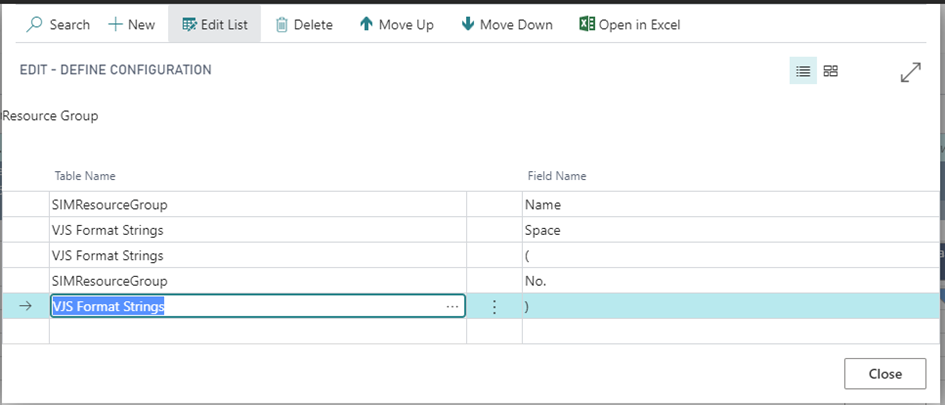
Here you can add, insert, edit, and delete fields as well as change their order. You can select the desired table name and field name from your Dynamics 365 BC data by clicking “…”
Formatting the labels
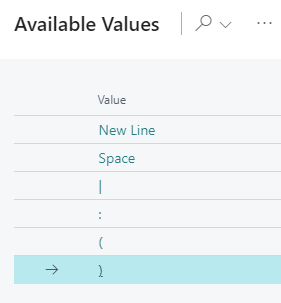
Separate the field contents by a blank, or by the separators shown below by selecting the according character from the “VPS Format Strings” table.
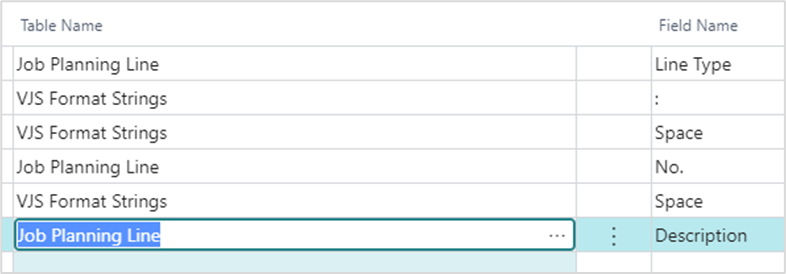
In the picture below, you see the table label of a job planning line and its corresponding settings in the dialog.